RECIPE: Row-Based Footswitch Setup

For scene-based workflows, it is handy to have switches for the first, second, third, etc. clips of the active scene/row. One way of accomplishing this is to have one control profile per row with a radio button to make a row the active scene.
Overview
- Create a profile to control the clips in row 1.
- Set up the MIDI bindings for the row’s clips.
- Duplicate the new profile for use with another row and update the targets.
- Set up a radio button group to switch profiles and make a row active.
Create the Profile for Row 1
A project can have many profiles in it. We will leave the default profile alone so that it can be used for bindings that aren’t row-specific. I rename mine to Always to remind myself that it is always active. We use MIDI Learn mode for creating the profiles in this tutorial, but you can use the Control Settings panel if you prefer.
- Choose MIDI Learn from the main menu.
- In the upper-left corner is the profiles popup that shows which profile the bindings will be saved in.
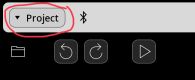
- Tap on the pop down and rename the Default profile to Always. This is where you will have bindings that are always active. You don’t have to rename it, but it will make things easier to keep track of.
- Choose New Profile from the Project Profiles section.
- Give the new profile the name Row 1.
- Tap on the first clip in the row, tap your foot controller to learn it.
- Learn all the other clips in that row.
- Optional: Set up any double-tap and hold bindings for the clips.
- Leave MIDI Learn mode.
- View the profile that you just created by choosing Control Settings from the main menu.
- The profile should look something like this:


Create Profiles for The Remaining Rows
Create profiles for the remaining rows as you did for Row 1. I suggest naming them Row 2, Row 3, etc.
An alternate method is to duplicate the Row 1 profile in the Control Settings panel and update the targets for the bindings in the duplicated profiles. The MIDI Learn method is probably faster.
Whichever method you use, you should end up with a series of profiles as shown below:

Create Scene/Profile Selector
Now that we have profiles that map the footswitches to particular rows, we need create a radio button group to handle the profile switching.
- Go into layout edit mode by tapping the lower tools' pencil icon.
- Create a new radio button group.
